Mail is where you'll spend most of your time. This page covers the everyday tasks: reading and answering messages, writing new ones, scheduling and recalling them, and keeping your inbox in order with folders, labels and the Focused inbox. Encryption, search and rules have pages of their own, linked below.
Open it with Mail in the app rail, or press Ctrl+Shift+M.
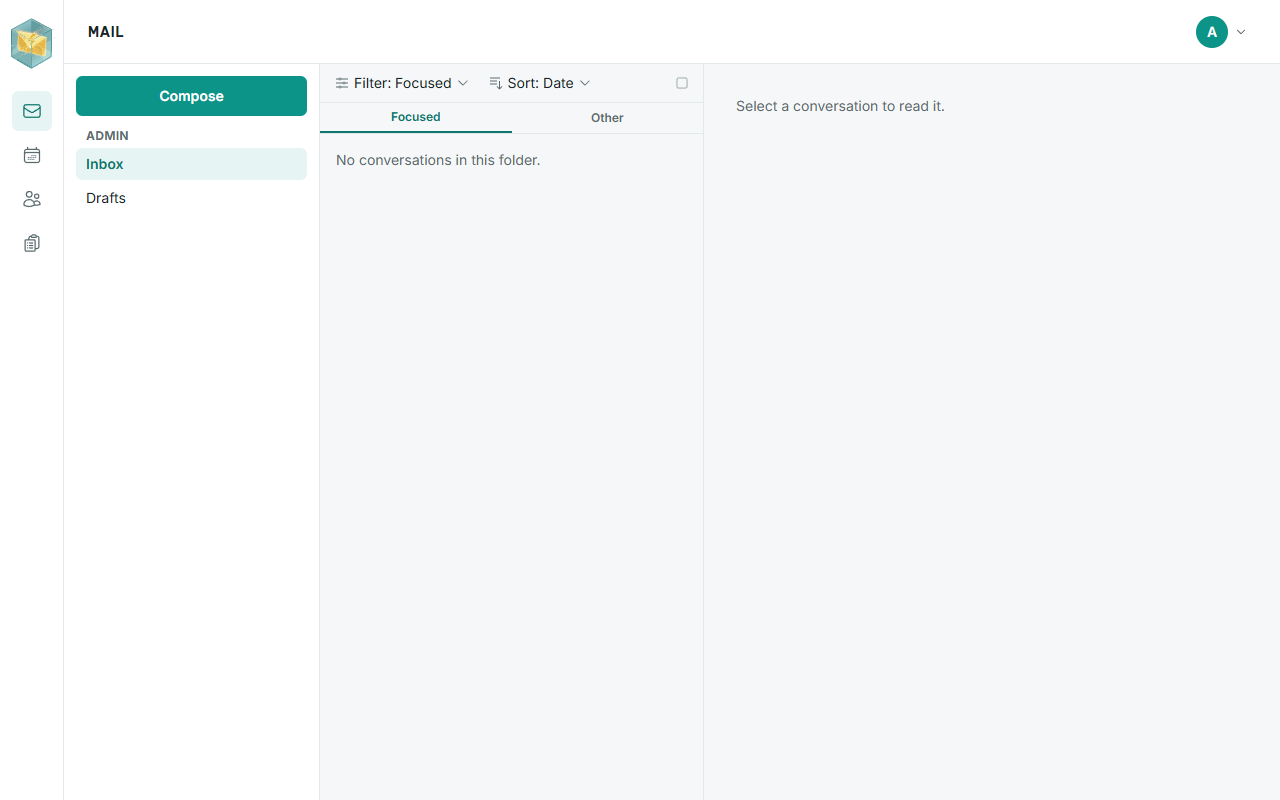
The parts of the screen
- The folder list on the left: Inbox, Drafts, Outbox, Sent Items, Deleted Items, Junk Email, Archive, then any folders you created. Inbox and your own folders show how many unread messages they hold. On a phone, tap Open folders.
- The message list in the middle, with Filter, Sort and Select above it.
- The reading pane on the right, showing the message you picked.
If other mailboxes are shared with you, such as a team mailbox, each has its own section in the folder list, and All Mailboxes at the top shows their inboxes, sent mail and so on merged together. See Shared mailboxes.
Read your mail
Click a message to read it. Opening a message marks it as read. In Inbox, mail is split between two tabs:
- Focused: mail that matters to you, from people you deal with.
- Other: newsletters, notifications and the like.
To see both together, choose Filter > All.
Conversations. Replies to the same message are grouped into one row, a conversation. The reading pane shows its messages as cards, newest first, with older ones folded; click one to open it. To list every message on its own, open Sort and turn off Show as conversations.
Pictures from the internet are never shown. Senders often hide tiny pictures in messages to find out when you open them, so RapidMX never loads pictures from the web. Pictures attached to the message itself are shown normally.
Dark mode. Messages follow the app's light or dark theme where their author left the colours open. If a message looks wrong, click the sun icon (View original) in its header to see it exactly as it was written.
A read receipt request. If the sender asked to know when you read the message, a bar offers Send receipt or Decline. Your automatic answer for colleagues and outsiders is set in Settings > Read Receipts. See Settings.
Contact cards. Click a sender's or recipient's name to see their contact card, recent messages and upcoming meetings with them, and to Add to contacts. A contact card attached to a message (a .vcf file) can be added with Add to address book.
Meeting invitations show the meeting's details and let you answer. See Calendar.
Write a message
- Click Compose (on a phone, New message), or press
Alt+N. - Type the recipients in To. Suggestions come from your contacts, your organization's directory and people you have written to. Click Cc Bcc to add copy recipients.
- Type a Subject and your message.
- Click Send, or press
Ctrl+Enter.
The window closes at once and the message is sent in the background. While it is on its way, Outbox shows a count. A pop-up confirms "Message sent".
While writing:
- Format your text with the toolbar: font and size, bold, italic, colours, alignment, lists, Insert link, Insert image, Insert table, Insert emoji and Insert GIF.
- Attach files with the paperclip (Attach files), or drag them onto the window. Pictures you drop go into the text where the cursor is.
- Attach my contact card adds your contact details as a card.
- Request a read receipt asks the recipient to confirm they read it.
- Encrypt this message and Digitally sign this message appear once your keys are unlocked. See Encryption.
- From appears when you can send from more than one mailbox, such as a shared one. Recipients then see that mailbox's name and address, not yours. Choose it before you add attachments.
- Your signature is added on its own. Set it up in Settings > Signatures. See Settings.
Drafts are saved automatically. The bottom of the window says "Draft saved". Minimize keeps the message aside while you read other mail. To throw a message away, click Discard draft (the bin). Encrypted messages are the exception: they are never saved as drafts.
Reply and forward
Use Reply, Reply All or Forward at the top or bottom of a message, or press Ctrl+R, Ctrl+Shift+R or Ctrl+Shift+F. A reply is sent from the mailbox the message arrived in.
Send a message later
- Write the message.
- Click the arrow next to Send (Send later).
- Pick a date and time in Send at and click Send later.
The message waits in Outbox marked "Scheduled for" its time. To change your mind, open it there and click Cancel: it goes back to Drafts.
Recall a sent message
Open the message in Sent Items and click Recall this message, then Recall message. This asks each recipient's mail system to delete the message, but only if they haven't read it yet. There is no guarantee and no confirmation either way, so treat it as a last resort.
If a message wasn't sent
A message that couldn't be sent stays in Outbox, and a pop-up says This message wasn't sent with the reason. Click Retry to try again, or Open draft to change it first (open the message in Outbox and click Move to Drafts to do the same later). If the receiving side rejected it, a delivery failure notice also arrives in your Inbox.
Organize your mail
Select a message, or several (see below), and use the buttons above the message or the More actions menu (…).
| To... | Do this |
|---|---|
| Archive | Archive, or press E. Moves it to Archive. On a phone, swipe the row to the left. |
| Move to a folder | Move to and pick a folder. On a phone, swipe the row to the right. |
| Create a folder | Move to, then New folder…: type a name and click Create and move. |
| Delete | Delete, or press Delete. Moves it to Deleted Items. |
| Flag | More actions > Flag, or press Insert. Flagged messages also appear in Tasks under Flagged email. |
| Mark as read or unread | More actions > Mark as read / Mark as unread. |
| Label | Labels, tick the labels and click Apply. New label… creates one. |
| Report junk | Report junk. Moves it to Junk Email and helps train the spam filter. Report phishing is for fake messages trying to trick you. |
| Not junk | In Junk Email, Not junk, or Not junk, and always trust the sender. |
| Block a sender | More actions > Block > Block the address. Their future mail goes to Junk Email. Undo in the pop-up reverses it. |
| Print or save | More actions > Print, or Save as > Save as .eml / Save as PDF. |
| Make a rule from it | More actions > Advanced actions > Create rule. See Rules. |
Folders created here always sit at the top level. Folders can't be renamed or deleted in the web app yet.
Labels are coloured tags; a message can have several. Manage them in Settings > Labels. To list only messages with certain labels, use Filter > Labels.
Work with several messages
Click Select above the list (or Ctrl+click a message; on a phone, press and hold one), then tick messages. Shift+click selects a range, and Select all ticks everything loaded. The bar at the top offers Mark read, Mark unread, Flag, Unflag, Archive, Apply label, Move to, Report junk and Delete. Cancel leaves select mode.
Filter and sort the list
- Filter: All, Unread, Read, Flagged or Has attachments, and in Inbox Focused or Other, plus Labels.
- Sort: by Date, Date sent, From, Subject, Importance or Flag status, in either order.
Your choices are remembered for each mailbox on this device.
Empty Deleted Items and Junk Email
Messages in Deleted Items and Junk Email stay there until you remove them. Open the folder and click Empty Deleted Items (or Empty Junk Email) at the top, then confirm. To delete just one message for good, delete it from inside Deleted Items, or select it anywhere and press Shift+Delete. Permanently deleted messages can't be brought back.
If your organization has placed your mailbox on legal hold, permanent deletion is refused.
New mail notifications
New messages in your Inbox pop up in the corner of the app. To get them from your computer while the tab is in the background, choose Turn on desktop notifications when it is offered, or from the account menu. See Settings.
Related pages
- Search: find messages, including encrypted ones.
- Encryption: send and read encrypted mail.
- Rules and automatic replies: sort mail as it arrives, and reply while you're away.
- Keyboard shortcuts.