Encryption
RapidMX can encrypt your mail so that only you and the people you write to can read it. Not even the people who run the server can open an encrypted message. It can also sign your mail, which proves to the recipient that the message really came from you and wasn't changed on the way.
This works with keys that belong to you. They are kept on the server in a locked vault, and only you can unlock it, with an encryption password that is separate from your sign-in password and never sent to the server. The encryption itself is S/MIME, a standard that most mail programs understand.
Your organization decides how much of this is automatic. In many organizations, mail between colleagues is encrypted without you doing anything.
Set up your encryption password
The first time you open Mail, you see Protect your mailbox.
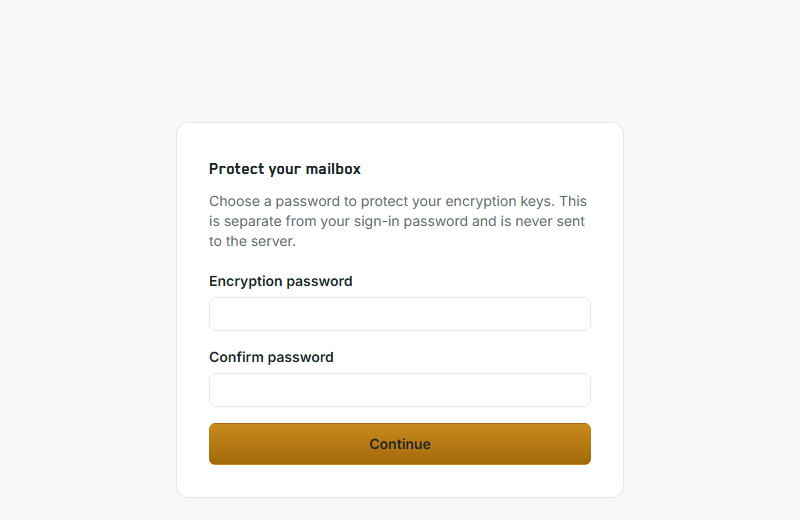
- Type an Encryption password of 12 or more characters, and type it again in Confirm password. A passphrase of several unrelated words is long enough and easy to remember. Don't reuse your sign-in password.
- Click Continue.
- Save your recovery codes shows eight codes. Click Copy codes to clipboard and store them somewhere safe, such as a password manager or a printed sheet in a locked drawer.
- Tick I have saved these recovery codes in a safe place and click Continue.
:::danger Keep your recovery codes If you forget your encryption password, a recovery code is the only way to get back into your encrypted mail. Nobody at your organization can reset the encryption password for you. The codes are not shown again. :::
Unlock your keys
Your keys stay locked until you need them. Mail asks for your encryption password in Unlock your mailbox when you open an encrypted message, send a signed or encrypted one, or change your encryption settings. Type it and click Unlock.
Once unlocked, your keys stay in that browser tab's memory and are never saved to disk. They are removed when you sign out, when you close the tab, or after a period without activity (30 minutes unless you change it, see Encryption settings).
Send an encrypted or signed message
When your keys are unlocked, the message window shows two boxes:
- Encrypt this message
- Digitally sign this message (only once you have a signing certificate)
If your keys are locked, click Unlock to sign or encrypt this message first.
Each recipient's address shows whether they can receive encrypted mail: "supports encryption" or "no encryption key found". You can only encrypt when every recipient supports it. This includes people outside your organization whose certificate RapidMX can find. If one of them doesn't, Mail tells you who, and you can remove them or send the whole message without encryption.
If your organization has chosen automatic encryption, the box is ticked for you when every recipient supports it.
Current limits for encrypted and signed messages:
- They can't include attachments or pictures in the text yet.
- Encrypted messages can't have Bcc recipients.
- Encrypted messages aren't saved as drafts, so closing the window discards what you wrote.
Read an encrypted message
Encrypted messages show "Encrypted message" in the message list, with a small lock. When you open one while your keys are locked, you see This message is encrypted with an Unlock button. Unlock, and the message appears in place.
If you see This message can't be decrypted, the reason is shown below it. Usually the message wasn't encrypted for you (for example it was forwarded to you), or it uses an old encryption method RapidMX doesn't accept as safe.
Signs on a message
Each message carries a small badge that says how it was protected:
| Badge | Means |
|---|---|
| Unprotected | An ordinary message, neither signed nor encrypted. |
| Encrypted | Only the recipients could read it. |
| Signed & verified / Encrypted & verified | Signed by the sender's known key and unchanged since. |
| Signed - signer not verified / Encrypted - signer not verified | Signed, but with a certificate you don't know yet. |
| Signature failed | The signature doesn't check out. The message may have been changed. Treat it with caution. |
| Verified when first opened | It was verified when you first read it, but the sender's key has changed or been revoked since. |
Trust a new sender. For a message marked "signer not verified", you can click Trust this signer. Before you do, compare the fingerprint shown with the sender by phone or in person: anyone can create a certificate with any name on it.
A sender's key changed. If you see This sender's signing key changed, compare the Current key and the New key. This is routine when someone renews their certificate, but it can also mean someone is pretending to be them. Confirm the new fingerprint with the person, then choose Accept new key, or Keep current key if you're not sure. You can review a contact's keys later in the Encryption section of their contact card.
Get a signing certificate
To sign your mail you need a digital signature certificate. It is optional: encryption works without one.
- Open Settings, then Encryption.
- Under Digital signatures, click Enable digital signatures.
- Wait. On most servers the certificate is issued automatically: the certificate authority sends a verification e-mail to your mailbox, RapidMX answers it for you, and the certificate arrives, usually within 10 to 30 minutes. You can leave the page; you'll be told when it is issued or if it fails. Check status asks again.
On some servers an administrator issues certificates by hand. The card then says so and names who to contact.
The card shows Active once the certificate is installed, and its expiry date. Within 30 days of expiry it offers Renew. If a request fails, click Try again.
If you forget your encryption password
- Open an encrypted message, or Settings > Encryption, so Mail asks you to unlock.
- Click Use a recovery code instead, type one of your codes and click Unlock. Upper or lower case, spaces and dashes don't matter.
- In Set a new encryption password, type a New encryption password, confirm it and click Set password.
The code you used stops working. If you have two or fewer left, generate a new set (see below).
If you have lost both your password and your recovery codes, your encrypted mail can't be opened by you or by anyone else. Some organizations use escrow, which lets a group of authorized people in the organization recover encrypted mail for legal or compliance reasons. If so, Settings > Encryption says so under Escrow. Escrow does not give you back access yourself; ask your administrator.
Encryption settings
Settings > Encryption has everything else:
- Encryption keys lists your keys by fingerprint.
- Unlock methods lists the password and each recovery code that can unlock your mailbox. Remove stops one from working.
- Changing your password. There is only one encryption password. To change it, use Rotate keys (below).
- Recovery codes. Regenerate recovery codes gives you a new set of eight and makes all the old ones stop working at once. Save the new codes the same way.
- Rotate keys. Use this if you think someone may know your password or a recovery code, or a device was lost. You set a new password and get new recovery codes, and every old way of unlocking stops working. Mail you already sent or received still opens. Click Rotate keys now, then Yes, rotate my keys.
- Session timeout sets how long your keys stay unlocked on this device with no activity: 5 minutes, 15 minutes, 30 minutes (the default), 1 hour or Never. It applies the next time you open or reload the app.
- Local search index size sets how much space the search index may use on this device.
- This session. Destroy keys on this device now locks your keys in this tab at once, for example before you step away from a shared computer.
On phones and in Outlook
Your private key stays in your vault and is unlocked in the web app. There is currently no option in RapidMX to copy it into a phone mail app or Outlook, so read and send encrypted mail in the web app.