Sign-in and account security
Your RapidMX account is protected by how you sign in. A password alone is easy to steal; adding a passkey, an authenticator app or a security key makes it much harder for anyone else to get in. This page shows how to sign in and how to set those up.
Your sign-in is managed on your account page, which is separate from Mail's settings. Open it from the account menu (your picture or initials) > Account.
Your sign-in password and your encryption password are two different things. Changing one does not change the other.
Sign in
- Open your organization's RapidMX address, for example
https://mail.example.com. You are sent to the sign-in page. - In Account ID, e-mail, or phone, type your username, email address or phone number, and click Continue.
- Choose how to sign in, if you have more than one way, and follow the steps: type your Password, use your passkey, enter the code from your authenticator app, or enter a One-time code sent to your email or phone.
- If your account uses two-step sign-in, Verify it's you asks for your second step.
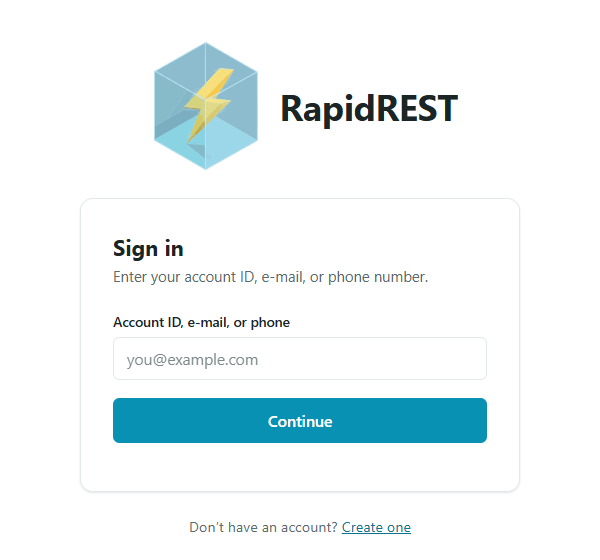
Other options on the sign-in page, depending on what your organization has turned on:
- Sign in with a passkey, which skips typing anything.
- Continue with Google, Continue with Microsoft, Continue with Apple or Continue with Facebook, to sign in with that account.
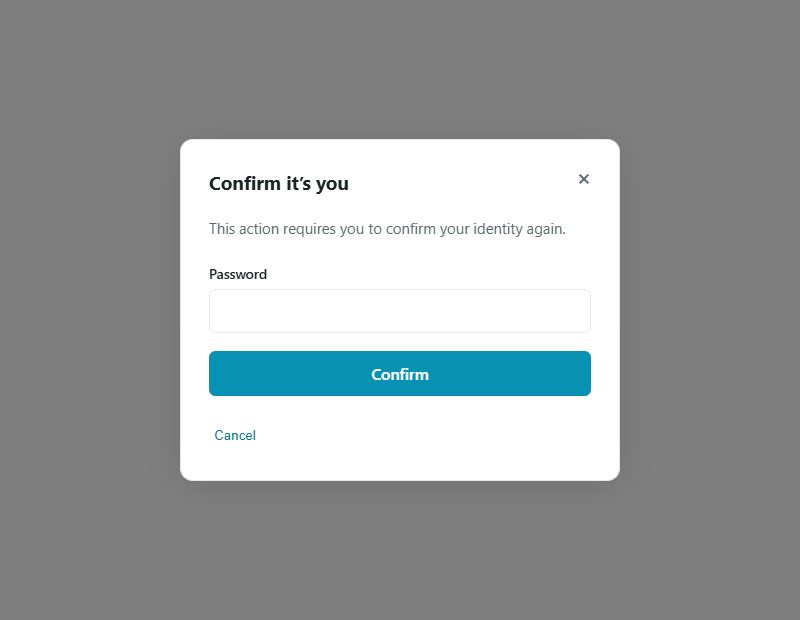
Confirm it's you. Before some sensitive actions, such as opening the admin console, RapidMX asks for your password again in Confirm it's you.
Forgot your password? There is no "forgot password" link. Sign in another way if you have one (a passkey or a one-time code), or ask your administrator to set a temporary password. You'll be asked to choose a new one the next time you sign in.
Your account page
The account page has these cards:
- Username: a name you can sign in with instead of an email address or phone number.
- Profile: your name and birthdate.
- Contacts: the email addresses and phone numbers on your account. Verify one to be able to sign in with it or receive one-time codes there.
- Sign-in methods: your passwords, authenticator apps, passkeys and security keys.
- App passwords: passwords for Outlook and phone mail apps. See App passwords.
- Security: two-step sign-in.
The Log out button at the top signs you out.
Add a passkey
A passkey lets you sign in with your fingerprint, face or device PIN instead of a password. It can't be phished, because it only works on your organization's real sign-in page.
- On your account page, find Sign-in methods and click +.
- Choose Passkey, then Add passkey.
- Follow your browser's or phone's prompt.
- Give it a Label (optional), such as "iPhone", and click Confirm.
Add an authenticator app
An authenticator app (such as Google Authenticator or 1Password) shows a short code that changes every few seconds.
- In Sign-in methods, click + and choose Authenticator app, then Add authenticator app.
- Scan the QR code with the app, or type the code shown into it. You won't see the code again.
- Type the code the app now shows into Verification code, give it a label if you like, and click Verify and add.
Add a security key
For a hardware key such as a YubiKey: in Sign-in methods, click +, choose Hardware key (FIDO2, YubiKey), then Add security key, insert the key and follow your browser's prompt.
Turn on two-step sign-in
With two-step sign-in, a password alone isn't enough: you also need your authenticator app or security key.
- Add an authenticator app or a security key first (see above). A passkey doesn't count as a second step.
- In the Security card, tick Require multi-factor authentication to sign in and click Save.
From then on, Outlook and phone mail apps need an app password.
Change your password
In Sign-in methods, click Change next to your password. Type the New password and Confirm new password; the list below the fields shows which rules it still needs to meet. Click Save password.
Remove a sign-in method
In Sign-in methods, click Remove next to it and confirm. The Last used column helps you spot ones you no longer use, for example an old phone.
If a device is lost or stolen
- Remove its passkey under Sign-in methods.
- Remove its app password under App passwords.
- Change your password if it might be known.
- If you used the device to read encrypted mail, rotate your encryption keys. See Encryption.
- Tell your administrator.