Web app
The web app is the main way to use RapidMX. It has everything: mail, calendar, contacts, tasks, settings, end-to-end encryption and the encrypted search index, plus the pages any installed plugins add (such as booking pages or video meetings). Nothing needs installing, so it is also the quickest way to get a new person started. Other apps, like Outlook or your phone's mail app, cover a subset of it.
Open it and sign in
-
In your browser, go to your organization's mail address, for example
https://mail.example.com. Your administrator can tell you the exact address. -
You are sent to the sign-in page. Enter your user name and password, or use another sign-in method you have set up, such as a passkey. See Sign-in and account security.
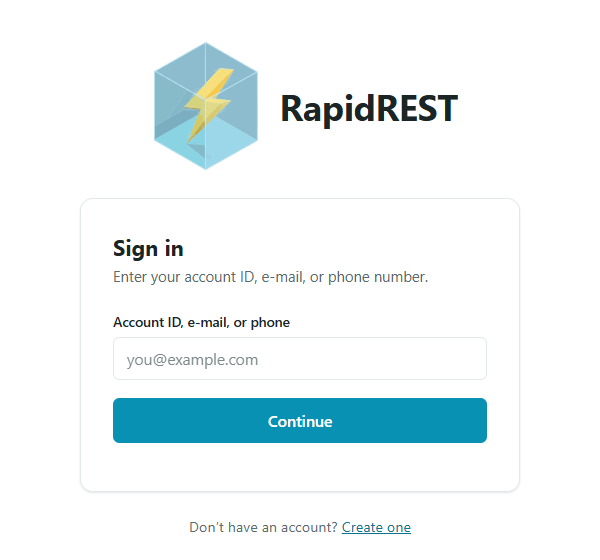
-
The first time, Mail asks you to protect your encryption keys with an encryption password. See Encryption.
-
Your inbox opens.
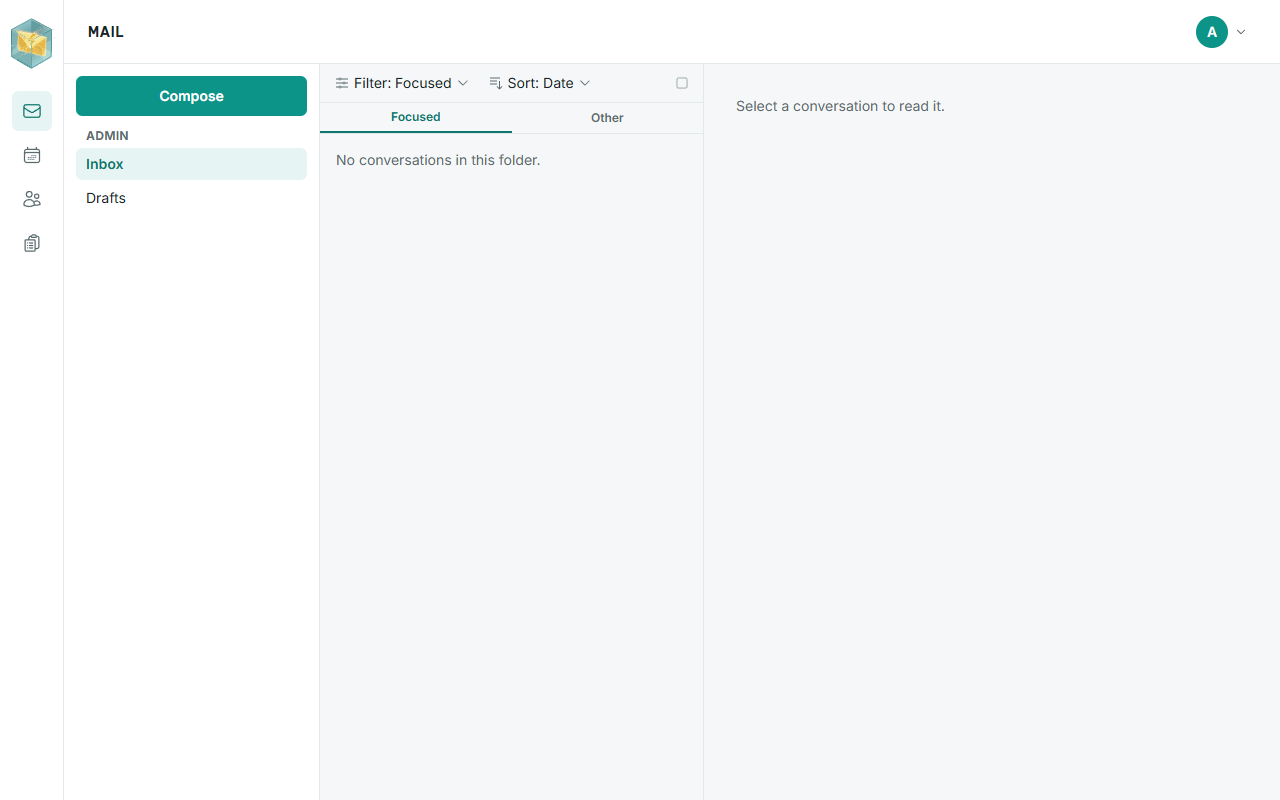
You stay signed in while the page is open: the app renews your sign-in in the background.
Find your way around
- The app rail on the left switches between Mail, Calendar, Contacts and Tasks, followed by any apps your plugins add. On a phone it becomes a bar along the bottom of the screen.
- The account menu is your picture or initials in the top corner. It holds:
- Theme: System, Light or Dark;
- Account: your sign-in settings, passwords, passkeys and app passwords;
- Settings: signatures, automatic replies, rules, appearance, sharing and more. See Settings;
- Notifications, Notification sounds and Turn on desktop notifications;
- Recent notifications: the last messages the app showed you;
- Keyboard shortcuts (not on phones);
- Admin Console, for administrators only;
- Sign Out.
If your organization has added its own header to the app, the account menu may sit in a different place in that header.
Keyboard shortcuts
Press ? (or Ctrl+/) anywhere to see the shortcuts available on the screen you're on. On a Mac, use Cmd wherever the list says Ctrl, except for the shortcuts below that switch apps, which use Ctrl+Shift everywhere.
| Where | Key | Does |
|---|---|---|
| Everywhere | Ctrl+Shift+M / C / B / L / S | Mail / Calendar / Contacts / Tasks / Settings |
Ctrl+Shift+A | Account | |
? or Ctrl+/ | Keyboard shortcuts | |
Alt+N | New message | |
Ctrl+R / Ctrl+Shift+R / Ctrl+Shift+F | Reply / Reply all / Forward | |
Ctrl+D or Delete | Delete (moves to Deleted Items) | |
E or Backspace | Archive | |
Ctrl+Shift+V | Move to a folder | |
Ctrl+Q / Ctrl+U | Mark as read / unread | |
Insert | Flag or unflag | |
Down or J / Up or K | Next / previous message | |
Ctrl+. / Ctrl+, | Next / previous unread message | |
Enter / Escape | Open the message on its own page / clear the selection | |
/ or Ctrl+E | Search | |
| Writing a message | Ctrl+Enter | Send |
Ctrl+S | Save draft | |
Escape | Close, keeping the draft | |
| Calendar | Alt+N | New event |
T | Today | |
Left / Right | Previous / next day, week or month | |
Ctrl+Alt+1 / 2 / 3 / 4 | Day / work week / week / month | |
| Contacts | Alt+N | New contact |
/ or Ctrl+E | Search | |
| Tasks | Alt+N | New task |
Single-key shortcuts like J or E do nothing while you are typing in a field. Some browsers keep a few combinations for themselves (for example Ctrl+N, Ctrl+T and Ctrl+W), which is why the app uses Alt+N for "new".
Notifications
The app shows its messages as small pop-ups below the header: new mail, a message that couldn't be sent, a setting that couldn't be saved. Errors stay until you close them; the rest disappear after a few seconds. To get notifications from your computer's notification area even while the tab is in the background, open the account menu and choose Turn on desktop notifications, then allow them when your browser asks.
Good to know
- Pictures from the internet are never loaded in messages. This stops senders from tracking when you open their mail. Pictures attached to the message itself are shown.
- Your encryption keys lock themselves after a period without use. See Encryption.
- On a phone, the web app switches to a phone layout, with swipe gestures in the message list. Most people still prefer the phone's own mail app for day-to-day use. See Phones and tablets.