The admin console
The admin console is where you run your organization's mail service: you add domains, create mailboxes and distribution lists, set policies for encryption and retention, install plugins and change how the apps look. It lives at https://mail.example.com/admin, on the same address as the web app your users read their mail in.
You use it the moment the server is installed (the first-run setup wizard opens there) and come back whenever someone joins or leaves, a new domain needs adding, or a policy needs changing. Day-to-day account management, such as resetting a password or turning on two-factor sign-in, happens in a second console on the sign-in server. See Users and sign-in.
Administrators manage the platform, not people's mail
This is the most important thing to understand about administering RapidMX.
An administrator is an ordinary user with extra powers over the platform: domains, policies, plugins, branding and the administrative settings of mailboxes. Being an administrator gives no access to anybody else's mailbox. In the mail app, an administrator sees their own mailbox and the mailboxes shared with them, exactly like everyone else.
The admin console only ever shows administrative details: addresses, owners, quotas, resource settings. It never shows a message, a calendar, a contact or an encryption key. When you do need to reach someone's mail, there are two deliberate, recorded ways to do it:
| You want to... | Do this | What is recorded |
|---|---|---|
| See a person's account as they see it (for example, to help them) | Impersonate this user on their mailbox page | The sign-in server's audit log records the impersonation |
Open a shared mailbox such as [email protected] | Add yourself under Shared access on its mailbox page | The grant is written to the RapidMX audit log |
Both are covered in Mailboxes. Reviewing a mailbox's quarantine or ingest queue, listing every mailbox and reading a mailbox's administrative details are also recorded in the audit log.
A few compliance tasks deliberately cross mailboxes, each with its own rules and audit trail: exporting a mailbox for a data request, erasure, retention and legal hold. These are in Compliance. Recovering encrypted mail is not an administrator power at all. It belongs to a separate group of escrow holders, described in Key escrow.
Who can open the console
You need two things:
- The
adminrole on your account. Theadminaccount created at install time has it. To give it to someone else, see Users and sign-in. - A recently confirmed identity. Your normal sign-in is not enough. When you open the console, your browser is sent to the sign-in server, which asks you to confirm it's you (for example, by entering your password again), and then brings you back.
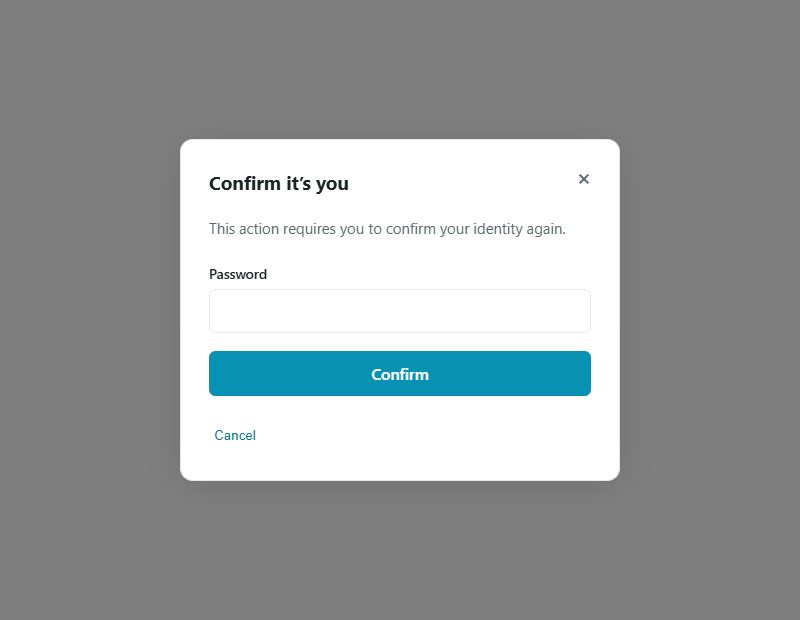
Signed-in administrators also find an Admin Console item in the account menu of the mail app.
If you see You do not have administrator access., your account doesn't have the admin role. If you see Confirming your identity didn't take effect, so the administrator console is still locked, choose Try again, and if it keeps happening, sign out and sign back in.
Some sensitive actions, such as deleting a mailbox, changing the retention policy or exporting another person's mailbox, check that you confirmed your identity recently. If too much time has passed, the console says This needs you to have recently confirmed your identity. Reload this page to confirm it again, then try once more.
Finding your way around
The sections are in the icon rail on the left (on a phone, in the menu behind the button at the top left). Choose Expand the menu at the bottom of the rail to show their names.
| Section | What it's for | Covered in |
|---|---|---|
| Mailboxes | Create, review, share and delete mailboxes; erase what deleted mailboxes left behind | Mailboxes |
| Domains | Add mail domains and check their DNS records | Domains |
| Audit Log | Who did what, and when | Quarantine and audit log |
| Distribution Lists | Group addresses that deliver to several people | Groups and resources |
| Transport Rules | Organization-wide rules applied to mail as it arrives | Compliance |
| Escrow Scopes | Who can jointly recover encrypted mail | Key escrow |
| Encryption Policy | When end-to-end encryption is used | Encryption and certificates |
| Mailbox Policy | Default quotas, and whether people can create their own mailbox | Mailboxes |
| Retention Policy | How long mail and audit-log entries are kept | Compliance |
| Data Requests | Mailbox exports, imports and erasure requests | Compliance |
| Signing Certificates | Pending requests for S/MIME signing certificates | Encryption and certificates |
| Plugins | Install, configure, upgrade and remove plugins | Plugins |
| Diagnostics | Versions, resource usage and live logs | Monitoring |
| Branding | Logo, product name, stylesheet, header and footer | Branding |
Plugins can add their own sections to the rail. Quarantine and Ingest Queue aren't in the rail: you reach them from a mailbox's page, because each one shows a single mailbox.
The escrow console, at https://mail.example.com/escrow, is separate from the admin console. It's for escrow holders, not administrators. See Key escrow.
The setup wizard
The first time an administrator opens the console, the Set up your server wizard opens, and every other admin page sends you back to it until it's finished. Its steps are Plugins, Domain, Server settings, Escrow, Mailboxes and Branding. Only the domain is required; everything else can be skipped and configured later from the sections above. The walk-through is in First-time setup.
To go through it again, choose Run setup again on the Mailboxes page. Your existing settings, domains and mailboxes are kept.